
Patterns
Bulk Rename Files with Regex: Examples & Patterns
Regex is the most powerful rename rule when filenames share a pattern. Use it when simple find and replace cannot describe the change precisely.
Move a leading date with regex
- Before
- 2026-05-22 invoice client-a.pdf
- After
- invoice_client-a_2026-05-22.pdf
- Before
- notes.pdf
- After
- notes.pdf
Matches a leading YYYY-MM-DD date, moves it after the title, then replaces spaces with underscores. Extensions are preserved.
Review the rules, then preview sample filenames without changing real files.
Start with one clear pattern
Regex works best when filenames are consistent. Match only the part you intend to change, and keep the replacement readable. A narrow pattern is easier to review than a clever pattern that tries to solve every filename at once.
Use capture groups when you need to keep useful parts and rearrange them in a new order. In Rename.Tools, the replacement can use $1, $2, and later groups to put captured pieces back into the new name.
Before writing the regex, describe the filename in plain language: where is the date, where is the title, where is the episode code, and which parts should be deleted. That description often becomes the pattern.
2026-05-22 invoice client-a.pdfinvoice_client-a_2026-05-22.pdfName scope. Regex ^(\d{4}-\d{2}-\d{2})\s+(.+)$, replacement $2_$1, no flags; then Find & Replace every space with _.
movie.name.s01e03.1080p.mkvmovie name S01E03.mkvName scope. Regex ^(.+)\.s(\d+)e(\d+).*$, replacement $1 S$2E$3, flag i; then Find & Replace every dot with a space.
Useful regex rename patterns
These patterns are good starting points. Preview them on a small file set before applying them to a folder with thousands of files. If one pattern feels fragile, split the workflow into a regex rule plus a simple Find & Replace cleanup rule.
Keep the Flags field intentional. Use i for case-insensitive matching, g when you want every occurrence replaced, and avoid m unless you are working with multi-line text pasted into filenames.
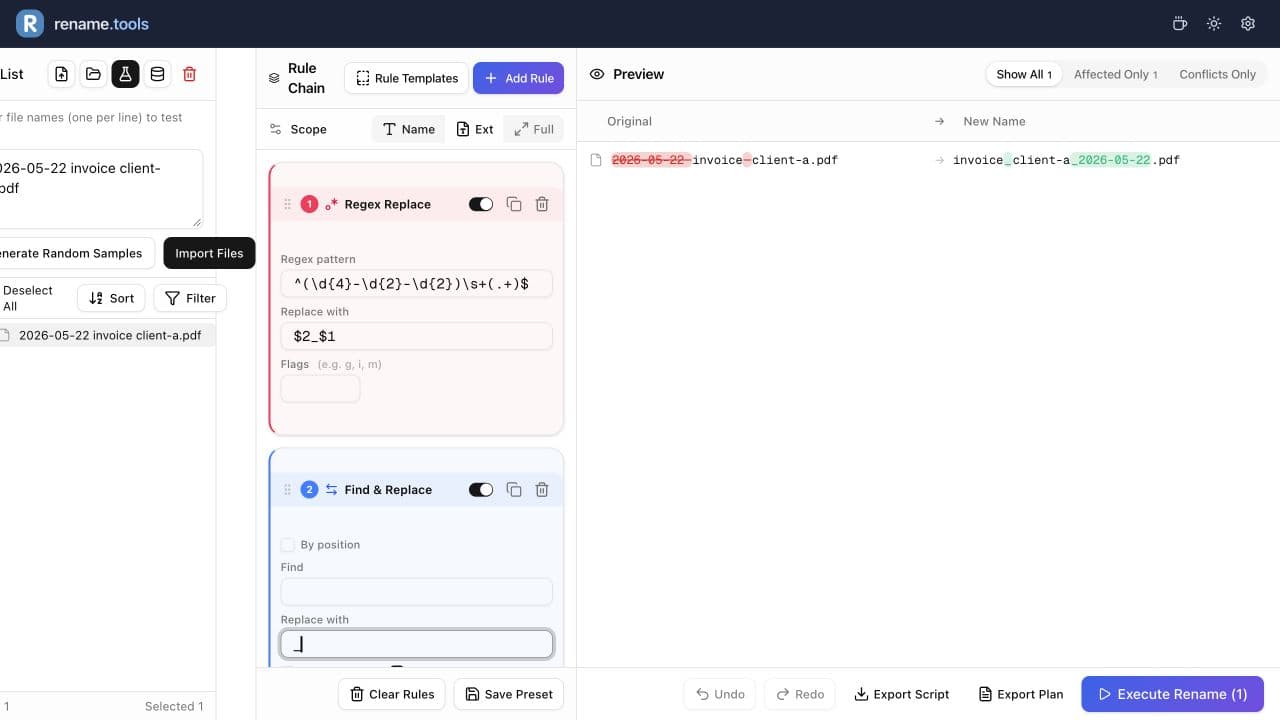
- 1Keep Scope on Name. Add Regex Replace; enter a pattern without surrounding / delimiters. Each recipe below is independent.
- 2Remove bracketed notes: pattern \s*\[[^\]]+\], replacement empty, flags g.
- 3Move a leading date to the end: pattern ^(\d{4}-\d{2}-\d{2})\s+(.+)$, replacement $2_$1, flags empty. Add Find & Replace for spaces if you want underscores throughout.
- 4Normalize episode casing: pattern s(\d+)e(\d+), replacement S$1E$2, flags gi.
- 5Collapse repeated whitespace: pattern \s+, replacement one literal space, flags g.
- 6Preview matching and nonmatching filenames before applying a pattern to a real folder.
Keep regex safe
Avoid overly broad patterns like .* unless you really mean to replace everything. If a replacement produces empty names, duplicate names, or removes more text than expected, stop and narrow the match.
When the regex rule is hard to reason about, split the workflow into two or three simpler rules. The preview will be easier to audit, and future you will understand the preset more quickly.
Regex does not need to be the first rule. Often the clearest workflow is to clean obvious text with Find & Replace, use regex for the structural transformation, then apply Case/Style or Sequence as the final polish.
Debug a pattern with the preview
When a regex does not work, do not immediately make it more complex. First check whether the pattern is matching the right text at all. A good debugging trick is to replace with a visible marker such as MATCH_$1 so you can see what was captured.
Then restore the real replacement once the captured groups are correct. This workflow is slower for one filename, but much faster for a folder with hundreds of files.
- 1Test the regex on three to five representative filenames first.
- 2Temporarily replace with a marker such as match_$1_$2.
- 3Confirm the preview shows the captured parts you expected.
- 4Restore the final replacement after the groups are correct.
- 5Switch to Affected Only to ensure unrelated filenames were not matched.
client-a_invoice_2026-05-22_final.pdfinvoice_client-a_2026-05-22.pdfName scope. Pattern ^([^_]+)_([^_]+)_(\d{4}-\d{2}-\d{2})_final$, replacement $2_$1_$3, flags empty.
Know when not to use regex
Regex is powerful, but it is not always the clearest tool. If you only need to replace one literal word, use Find & Replace. If you only need numbering, use Sequence. If you need case conversion, use Case/Style.
The best rule chain is often a combination: simple rules for simple edits, regex only for the structural part, and a final preview pass to verify the result. This keeps presets easier to maintain and safer for future batches.
- 1Use Find & Replace for fixed words or separators.
- 2Use Remove/Cleanup for repeated clutter such as brackets or symbols.
- 3Use Regex Replace when the useful parts must be captured and rearranged.
- 4Save regex presets only after testing them on several filename variants.
My Vacation Photos.jpgmy-vacation-photos.jpgThis is a Case/Style job, not a regex job.
Ready to try the workflow?
Open Rename.Tools, add a few sample files, and preview every rule before touching the real filenames.