
Photos
Batch Rename Photos by Date & Sequence
Camera filenames are rarely meaningful. Choose a fixed event date or read each photo’s EXIF capture date, then add sequence numbers. The runnable example below uses a fixed date, not EXIF.
Photos with a fixed date and sequence
- Before
- IMG_0421.jpg
- After
- 2026-05-22_001_tokyo.jpg
- Before
- IMG_0422.jpg
- After
- 2026-05-22_002_tokyo.jpg
Uses the literal date 2026-05-22, not EXIF metadata. Change the date and location before using your own photos.
Review the rules, then preview sample filenames without changing real files.
Choose a stable photo naming pattern
A good photo filename should still make sense after it leaves Rename.Tools. Put the date first, then a padded sequence number, then an optional place, client, event, or camera label.
Use four-digit years and two-digit months and days. That keeps alphabetical sorting aligned with time order in Finder, Explorer, cloud drives, NAS folders, and media backup tools.
Decide whether the name should describe when the photo was taken, where it belongs, or both. For personal albums, date plus location is usually enough. For client work, add the project or shoot name so exported files remain recognizable.
DSC_0007.JPG2026-05-22_001_tokyo.JPGIMG_1842.HEIC2026-05-22_002_tokyo.HEICBuild the rule chain
To enter a template below, click Add Text, paste the complete template including braces, then press Enter or Tab to apply it. It becomes draggable text and variable blocks; check the updated preview before continuing.
Use Find & Replace or Remove to strip camera prefixes when they do not carry useful meaning. Then use Sequence with padding so every file receives a predictable number.
For the fixed-date example, keep import order. The Sequence rule can also sort by filename or modified time before numbering. EXIF date is available in a naming template, but there is currently no EXIF-date sort option.
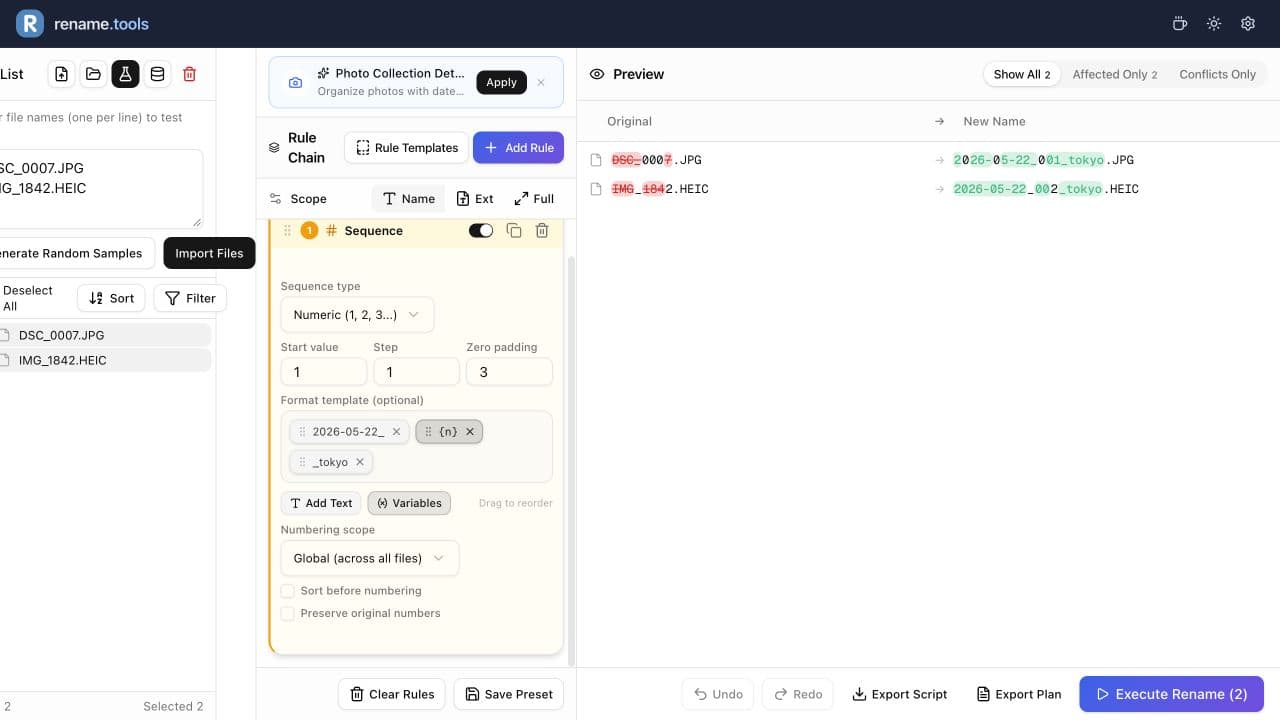
- 1Import DSC_0007.JPG and IMG_1842.HEIC in that order, and keep Scope on Name.
- 2Add Sequence: Numeric, start 1, step 1, padding 3, global scope; keep sorting and Preserve original numbers off.
- 3Set the template to 2026-05-22_{n}_tokyo. It replaces the whole name, so you do not need a separate camera-prefix removal rule.
- 4This produces 2026-05-22_001_tokyo.JPG and 2026-05-22_002_tokyo.HEIC. The date and tokyo are fixed example text.
- 5For real capture dates, load image metadata and change the template to {exif.date}_{n}_tokyo. {date} instead uses the current UTC date, not the capture date.
- 6Missing EXIF leaves the literal {exif.date} in the preview. Filter those files into a separate batch and use a known date; do not execute unresolved placeholders.
When EXIF metadata helps
Choose the date source deliberately: 2026-05-22 is text you enter; {exif.date} reads DateTimeOriginal, falling back to CreateDate; {date} is the current UTC date. File modified time is a separate property and may change when files are copied.
If EXIF is missing, the preview keeps {exif.date} literally. Separate those files and enter a known date or keep their existing names. Never silently replace an unknown capture date with today’s date.
Renaming a RAW filename does not imply RAW metadata support. GPS variables produce coordinates, not city names; tokyo in this guide is a label you enter yourself.
If the photos include EXIF dates, load metadata and prefer EXIF date variables over today's date. This is useful when files were copied, downloaded, exported from a phone, or edited after they were taken.
EXIF is not guaranteed. Screenshots, social media exports, edited images, and some HEIC conversions may have missing or changed metadata. A known event label is a useful alternative when the capture date cannot be verified.
When EXIF dates differ from file modified times, trust the value that matches your organizing goal. For a vacation album, capture date is usually better. For a delivery folder, export date may be more useful.
Quality check before renaming photos
Before execution, scan the first few and last few preview rows. This catches sorting mistakes, especially when filenames include numbers with different lengths.
If the preview includes non-photo files, stop and filter the list. Mixing photos, documents, and videos in one sequence can create technically valid names that are not useful later.
- 1Confirm every target name begins with the intended date.
- 2Confirm sequence numbers are padded consistently, such as 001, 002, and 003.
- 3Confirm .jpg, .png, .heic, and .raw-style extensions were not rewritten.
- 4Switch to Affected Only and scan for files that should have stayed unchanged.
Vacation/IMG_0421.jpgVacation/2026-05-22_001_tokyo.jpgUse the same fixed-date template on a fresh one-file batch. The folder path is unchanged; only the filename is renamed.
Separate photos by source when needed
Phone photos, DSLR files, screenshots, RAW exports, and edited copies often need different naming rules. If one rule chain starts getting complicated, split the files into smaller batches instead of forcing every case into one workflow.
For example, camera photos may use EXIF date plus sequence, screenshots may use the modified date, and edited exports may use a project label plus version number. Smaller batches produce cleaner names and make preview review faster.
- 1Use folders or filters to separate camera photos, screenshots, and edited exports.
- 2Create one preset for capture-based names and another for export-based names.
- 3Keep RAW and edited JPEG files in separate batches if they should not share the same sequence.
- 4Use a short event label only when the folder name alone is not enough context.
Edits/final_export_3.jpgEdits/client-a_2026-05-22_v03.jpgA separate preset: Name scope; Sequence padding 2, Preserve original numbers on, extract pattern (\d+), template client-a_2026-05-22_v{n}. The Edits folder is unchanged.
Ready to try the workflow?
Open Rename.Tools, add a few sample files, and preview every rule before touching the real filenames.